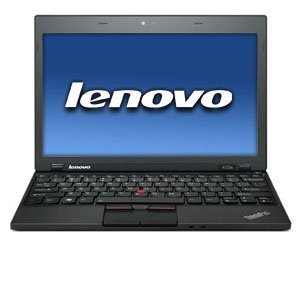
Complete Guide to install windows 7 on Lenovo X120e and
other similar products.
Drivers for Lenovo ThinkPad x120e is 64bits compatible so if
windows 7 with 64 bits is installed than it can give better performance but I have
been able to install 32bit version of Windows 7 and Windows Xp on my Lenovo ThinkPad x120e without any
hassles!
If you don't know about what is this 32/64 bits than you can have a look at this 32-bit and 64-bit Windows
Requirements
1. Lenovo ThinkPad x120e (of course, :p )
2. USB Pen Drive (Size: Minimum 4Gb but recommend
as 10Gb)
 3. Windows 7 USB/DVD Download Tool (it’s a legal Microsoft tool)
4. ISO for installation of Windows 7
You have 2 Options
i) Create ISO from your Windows7 DVD(use Imgburn for this task) or
ii) Download from the Internet. Warning: Be Smart for downloading or else you might get Virus ,
If you don't understand ask here i will help you out.
6. A PC or Laptop or any Device (default: Pc) which can RUN Windows 7 USB/DVD Download Tool.
5. Once installed, you will need to have Drivers
for Bluetooth, wireless and so on..And for this Lenovo have provided a place to download all the drivers, ie. Drivers and software - ThinkPad Edge 11, Edge E10, X120e
How to install windows using usb?
Steps are simple,
1. Insert a USB pen-drive to your Pc, make sure you have enough space for your ISO to get loaded. TIP: You can test this ISO by MobaLiveCD which can test this USB installer.
2. RUN Windows 7 USB/DVD Download Tool and its simple just to start and it will take time and its done.
3. After you are done, restart PC and than enter in Bootloader by pressing F12, select USB drive and than Installation begins.
4. Install all the drivers from Drivers and software - ThinkPad Edge 11, Edge E10, X120e and you are done..
Common Errors
1. Bluetooth/Wireless modem/Hotkeys are not working?
ThinkPad requires all Power Management Drivers installed for using Hotkeys and through hotkeys integration Bluetooth/Wireless modem can be activated(Fn+F5).
2. Got a Dead Pixel / spot on my Lenovo Thinkpad Screen!!
Dead pixel can be remove by a method or a software.
Complete Guide can be found here How to Fix a Stuck Pixel
Any other problem?
All are free ask.
Thank You.
Complete Guide To Install Windows 7 On Lenovo X120E And Other Similar Products With Useful Tips. >>>>> Download Now
ReplyDelete>>>>> Download Full
Complete Guide To Install Windows 7 On Lenovo X120E And Other Similar Products With Useful Tips. >>>>> Download LINK
>>>>> Download Now
Complete Guide To Install Windows 7 On Lenovo X120E And Other Similar Products With Useful Tips. >>>>> Download Full
>>>>> Download LINK NU
Thank You and I have a nifty give: How To Renovate House Exterior home remodeling contractors near me
ReplyDelete